 EarMemo
EarMemo › Transfer audio without iTunes
How to transfer audio files to an iPhone without iTunes
iTunes is no longer needed. Four routes work: drag files in from a desktop browser over your local Wi-Fi, import through the iOS Files app (iCloud Drive, SMB share, or a USB drive), send them via the Share Sheet, or AirDrop from a Mac. All four land the files in a player app, not Apple Music.
Why iTunes syncing stopped being the answer
Apple split iTunes up in macOS Catalina; syncing moved into Finder, and audiobooks and music took different paths. Meanwhile iOS gained a real filesystem through the Files app, and apps gained the right to own a document folder. The result is that a modern local player can take files directly — no library database in the middle.
Route 1 — drag files in from a desktop browser (no cable, no cloud)
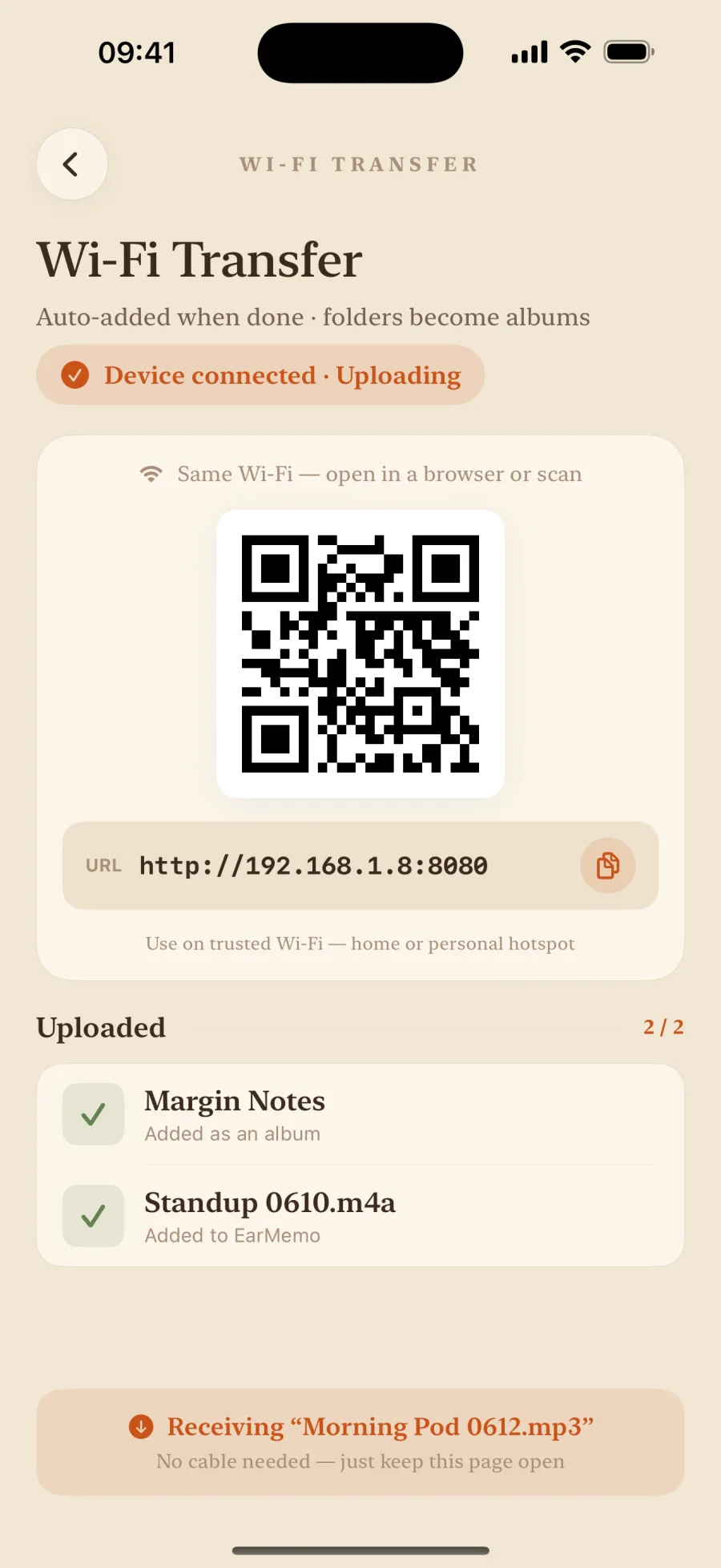
This is the fastest route for a large batch, and it is the one VLC popularised. EarMemo works the same way:
- Put both devices on the same Wi-Fi network. Your own home or office network — see the caution below about shared networks.
- Turn on Wi-Fi transfer in EarMemo. It shows a local address such as
http://192.168.1.23:8080. - Type that address into any desktop browser. Chrome, Safari, Firefox, Windows or Mac — no software to install on the computer.
- Drag the files or a whole folder onto the page. Folder structure is preserved, so a book split across 40 files arrives as one book. Nothing leaves your local network at any point.
Route 2 — the Files app
Works with anything the Files app can see: iCloud Drive, Dropbox, Google Drive, an SMB network share, or a USB stick plugged into the phone through the USB-C or Lightning port. Open the folder, select the audio, share it into your player. This is the route to use when the files are already in cloud storage you own.
Route 3 — the Share Sheet
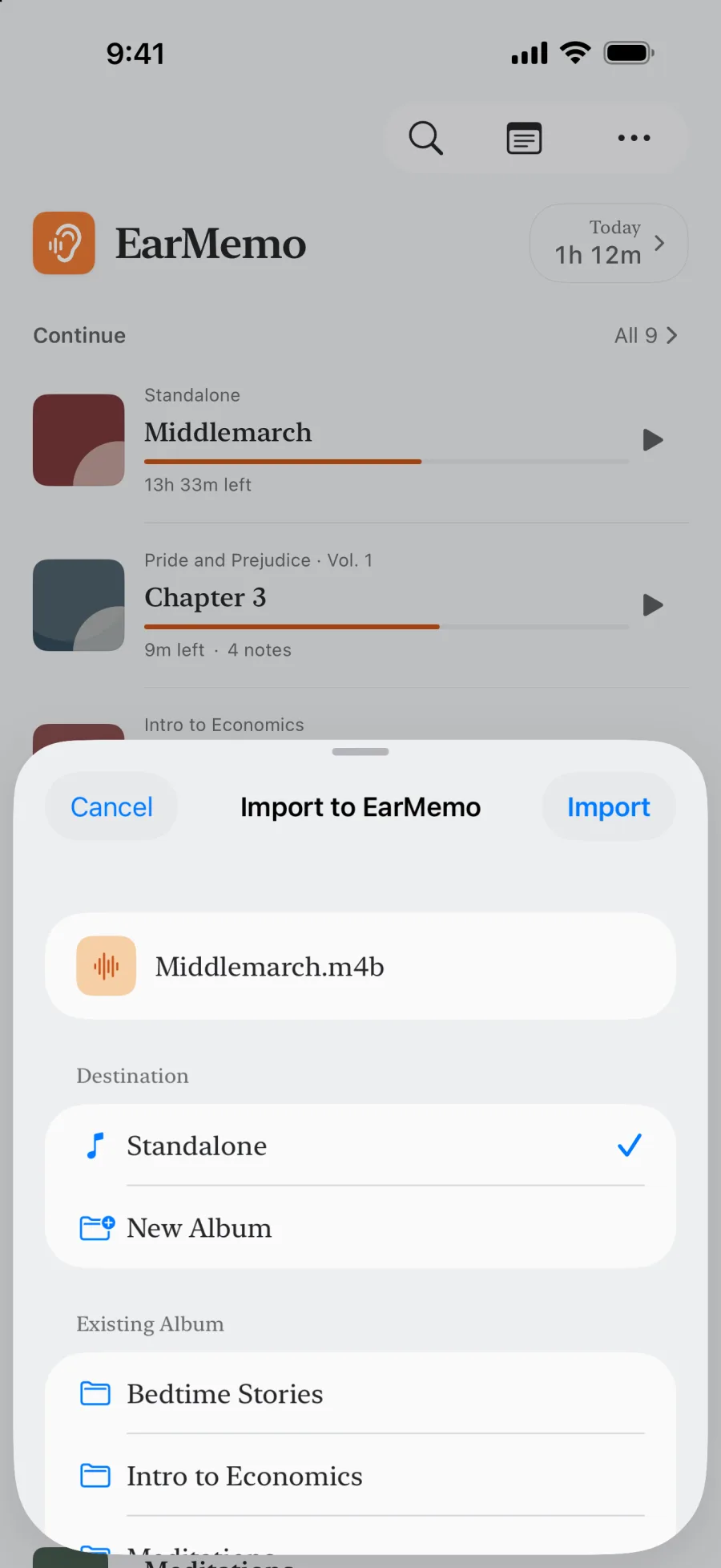
For one-off files that arrive in Mail, Messages, or a download. Tap Share on the file and pick the player. EarMemo registers as a share target for audio and video files.
Route 4 — Finder or AirDrop
Plug the phone into a Mac, open Finder, go to the Files tab, and drag into the app's document folder. Or AirDrop from a Mac and pick the player when iOS asks where to open it. Both are fine for a handful of files and tedious for a hundred.
Which route for which situation
| Your situation | Best route | Why |
|---|---|---|
| A 40-file audiobook on your laptop | Wi-Fi browser transfer | One drag, folder structure kept, no cable. |
| Files already in iCloud Drive or Dropbox | Files app | No transfer at all — import in place. |
| A single episode someone emailed you | Share Sheet | Two taps. |
| A USB stick full of lectures | Files app | Plug it into the phone and import directly. |
| You are on public or office Wi-Fi | Files app or cable | Do not run a local web server on a network you do not control. |
A caution about Wi-Fi transfer that most apps do not print
While Wi-Fi transfer is running, EarMemo is a small web server on your local network, and it announces itself over Bonjour. Anyone else on that same network can reach the page and see the file list while it is on. That is fine on your own home network and a bad idea on café, hotel, or open office Wi-Fi. Turn it off when the transfer is done — it does not run in the background, and it never reaches beyond your local network gateway.
When EarMemo is the wrong choice
- The files are DRM-protected. Audible .aax and Apple Books purchases will not open in any third-party player, however you transfer them.
- You want the files in Apple Music instead. That still needs Finder syncing or a tool like WALTR; a player app's document folder is a different place.
- You are on a network you do not control. Use the Files app or a cable rather than running a local server.
- You want your library to live on a NAS and stream. EarMemo plays files that are on the device; it is not a NAS client.
Questions people actually ask
How do I put MP3 files on my iPhone without iTunes?
Use a player app that accepts direct import. With EarMemo you can drag files from a desktop browser over your local Wi-Fi, import them through the iOS Files app from iCloud Drive or a USB stick, or send them in through the Share Sheet. None of these require iTunes or a sync database.
Can I transfer audio to an iPhone without a cable?
Yes. Wi-Fi transfer opens a page you can load in any desktop browser on the same network and drag files onto. AirDrop from a Mac also works for smaller batches.
Does Wi-Fi transfer upload my files to the internet?
No. The transfer runs entirely inside your local network — the phone serves a page, the computer posts the file to it, and nothing crosses your router to the internet.
Will a multi-file audiobook stay as one book?
Yes, if you transfer the whole folder. EarMemo preserves folder structure, so a book split into 40 chapter files arrives as one album rather than 40 loose tracks.
What formats can I transfer?
EarMemo accepts mp3, m4a, m4b, aac, flac, wav, aif, aiff and caf, plus mp4, mov and m4v when you want to listen to a video's audio track.
Is there a file size or count limit?
The limit is your device's free storage. The free version limits how much you can play, not how much you can import — imported files stay visible and deletable either way.
Try it with your own files
EarMemo is free to download and free to keep using within its quota. EarMemo Pro is a single one-time purchase — no subscription, no ads, no account.