 EarMemo
 › Bookmark with AirPods
How to bookmark an audiobook with AirPods — without pausing or taking out your phone
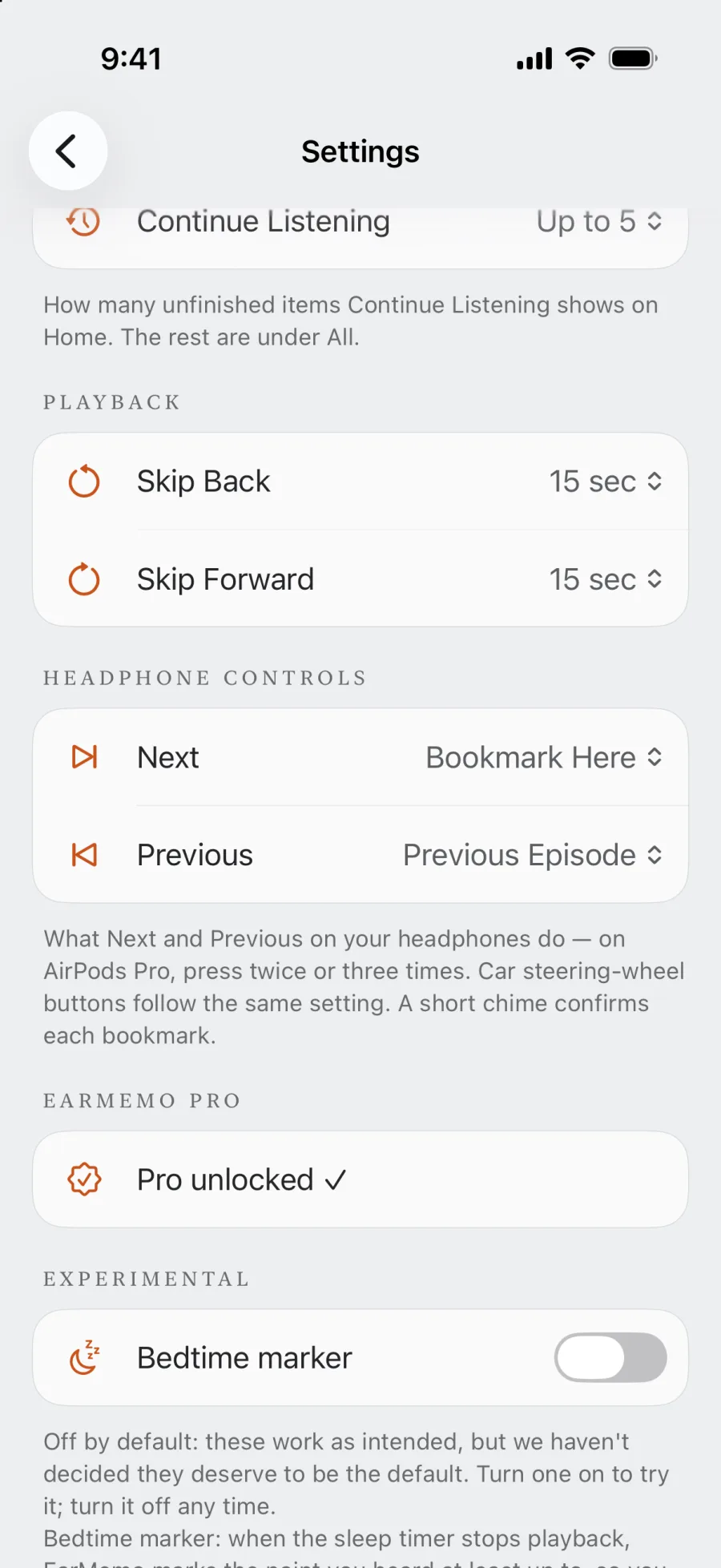
In EarMemo, set Settings → Headphone Controls → Next to Bookmark Here. From then on, pressing AirPods Pro twice saves the current second with a short chime, and the book keeps playing. The mark lands two seconds before the press, so it catches the start of the sentence.
No headphone button to hand? Car steering-wheel buttons follow the same setting, the Lock Screen player has a Bookmark Here button, and Siri marks the spot when you say “Bookmark here in EarMemo”. Marks are unlimited in the free version; the words come later.
Set it up once
- Open Settings → Headphone Controls. Set Next (or Previous) to Bookmark Here. Until you change it, the presses still go to the next and previous episode.
- Tap Try It under that section and press your headphones. A card says what the press just did, so you know the setting took before you rely on it.
- Play something and press. A short chime confirms the mark, and it appears in that episode's notes.
Which press, on which headphones
| Headphones | Next (the usual choice) | Previous |
|---|---|---|
| AirPods Pro, AirPods (3rd generation and later) | Press the stem twice | Press the stem three times |
| AirPods Max | Press the Digital Crown twice | Press it three times |
| AirPods (1st and 2nd generation) | Double-tap, once double-tap is set to Next Track in iOS Settings → Bluetooth → your AirPods | — |
| Other Bluetooth headphones | The next-track button | The previous-track button |
| Car steering-wheel buttons | Next track | Previous track |
Other ways to mark without stopping
- Lock Screen and Control Center. The player there has a Bookmark Here button, with the same chime.
- Siri. “Bookmark here in EarMemo” marks the spot. “EarMemo, add a thought” marks first, then asks what the note is and saves your answer as its text — useful when you are driving and the thought is the point. Siri pauses the audio while it listens.
- In the app. Bookmark Here on the player screen.
Two headphone presses within three seconds in the same episode count as one mark, so a nervous double press doesn't leave two.
What a mark keeps, and what to do with it later
A mark is a position, not a recording: the second you pressed, minus two. Later — at the end of the chapter, when you've parked — open the episode's notes. The marks sit on a timeline; tap ▶ to hear the passage again, then write one line about why you marked it. If a mark landed a little early or late, nudge it by a second either way.
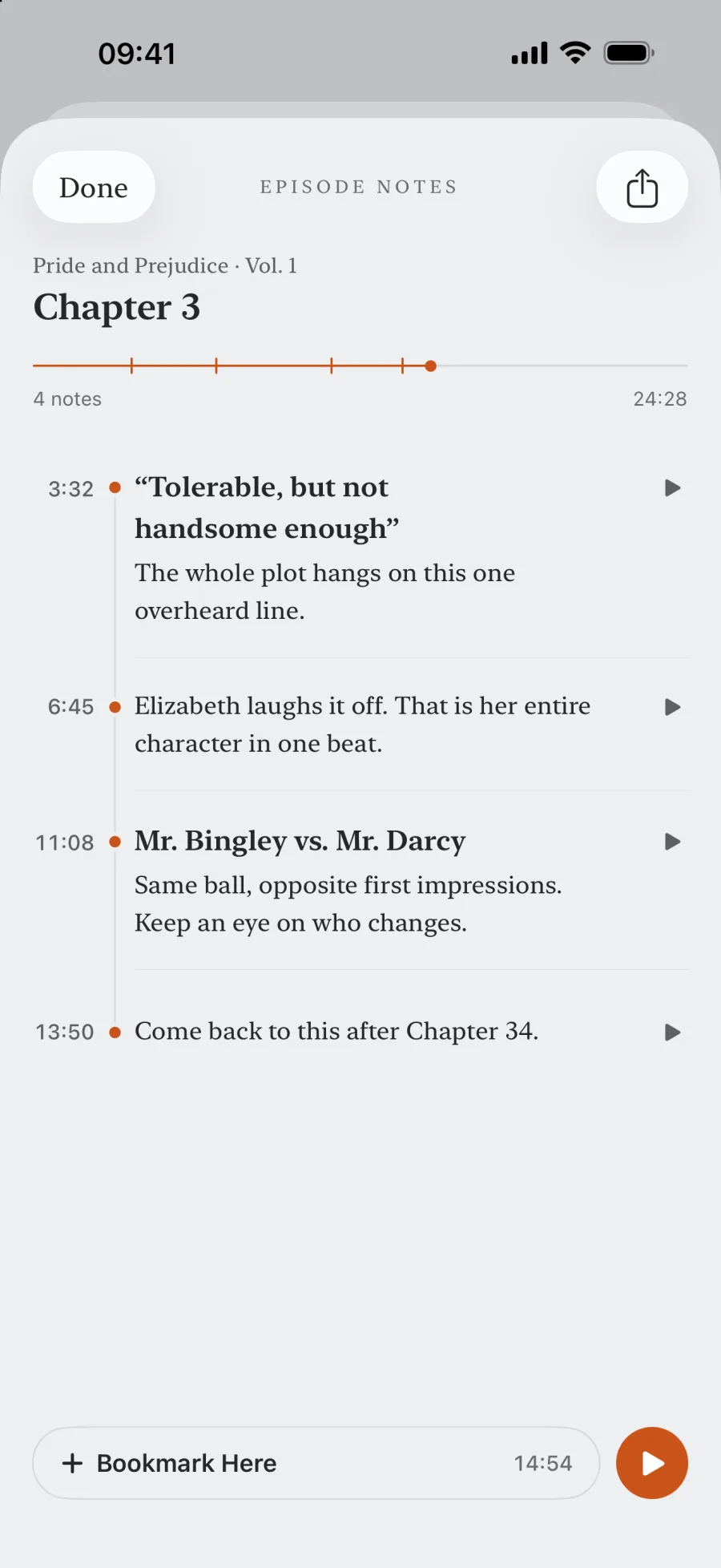
That is the whole method behind remembering what you hear in audiobooks: mark, keep listening, add one sentence, revisit. To move notes into Obsidian or another notes app, see timestamped notes exported as Markdown.
The trade-off: one press stops skipping
Whatever you reassign no longer skips. In an audiobook with chapters, Next normally jumps to the next chapter — so if you use that from your headphones, give Bookmark Here to Previous (three presses) instead, or set Previous to Skip Back. Each press offers the same three choices: next/previous episode, skip forward/back, or Bookmark Here.
Other apps that do this
Marking from your headphones isn't unique to EarMemo. Pocket Casts lets you set a headphone press to Add Bookmark for the podcasts you follow in it, and Snipd turns a press into a transcript snippet with an AI summary. EarMemo is for audio files you already have — audiobooks, lectures, downloaded episodes — and keeps the exact second for your own words. Checked 2026-11-22.
When EarMemo is the wrong choice
- Your audiobooks are in Audible or Apple Books. Those are DRM-protected and only play in their own apps, so EarMemo's marks can't reach them.
- You want the passage written out for you. A mark keeps the position; there is no speech-to-text. Snipd does that for podcasts.
- You need a CarPlay app. EarMemo has none. Steering-wheel buttons still mark, but the car screen shows only the standard Now Playing controls.
Questions people actually ask
Can you bookmark an audiobook with AirPods?
Yes, in a player that lets you reassign the headphone press. In EarMemo, set Settings → Headphone Controls → Next to Bookmark Here; pressing AirPods Pro twice then saves the current second with a chime while the book keeps playing. Pocket Casts offers a similar setting for podcasts.
Does bookmarking with AirPods pause the audiobook?
No. The press saves the position and playback carries on. Only Siri pauses the audio, while it is listening to you.
How do I know the bookmark worked with the phone in my pocket?
A short chime plays on every mark. Vibration doesn't work while an app is in the background, so EarMemo confirms with sound.
Can I add words to a bookmark without touching the phone?
Yes, with Siri: say “EarMemo, add a thought”. It marks the spot first, then asks what the note is and saves your answer. In the free version, 5 notes can carry text; marks without text are unlimited.
Do car steering-wheel buttons work too?
Yes. They send the same next and previous commands as headphones, so they follow the Headphone Controls setting.
Is this free?
Marks are unlimited in the free version, from headphones, the Lock Screen and Siri. Text on more than 5 notes and Markdown export come with EarMemo Pro, a one-time purchase.
Try it with your own files
EarMemo is free to download and free to keep using within its quota. EarMemo Pro is a single one-time purchase — no subscription, no ads, no account.