 EarMemo
 › Notes on recorded lectures
How to take timestamped notes on recorded lectures on an iPhone
Put the recordings in a local player that ties each note to the playback position. In EarMemo, import a course folder — MP3, M4A, or the MP4 of a class recording, which plays as sound only — listen at 1.5× or 2×, and tap Bookmark Here (or press your headphones) whenever an explanation matters. Before the exam, tap the mark and you hear the original explanation again, at that second.
Write one line on each mark after the lecture. With EarMemo Pro the notes export as Markdown, one file per lecture or one per course. Nothing is transcribed or uploaded.
What this is for — and what it isn't
This is for lectures that already exist as files: MP3s your lecturer posts, a class recording your school lets you download, a Zoom recording, open courseware such as Open Yale Courses or Gresham College. If you are in the room and want to record while you write, a notes app that records in class fits better — Notability syncs its recording to what you write. If you want the whole lecture as text, use a transcription app.
Set up a course
- One folder per course on your computer, files named in order:
01 Introduction.mp3,02 Markets.mp4… - Send the folder to EarMemo from a desktop browser over Wi-Fi, or through the Files app. It becomes one album with the lectures in filename order. Step by step: transferring audio to an iPhone without iTunes.
- Video recordings play as audio, in the background with the screen off. Each lecture keeps its own position, so you can stop mid-lecture and pick it up days later.
While listening: mark, don't transcribe
Speed goes from 0.5× to 3.5× with the pitch kept natural; most lectures are comfortable at 1.5×. Then mark what you will need again:
- a definition, or a formula said out loud;
- a worked example;
- “this will be on the exam”;
- the point where you got lost — a mark there is a question for office hours.
Tap Bookmark Here on the player. The mark lands two seconds before the tap, so it starts at the beginning of the sentence. On a walk with the phone in your pocket, a press on your headphones does the same — see bookmarking with AirPods without pausing. Don't stop to write; the lecture keeps going.
After the lecture: one line per mark
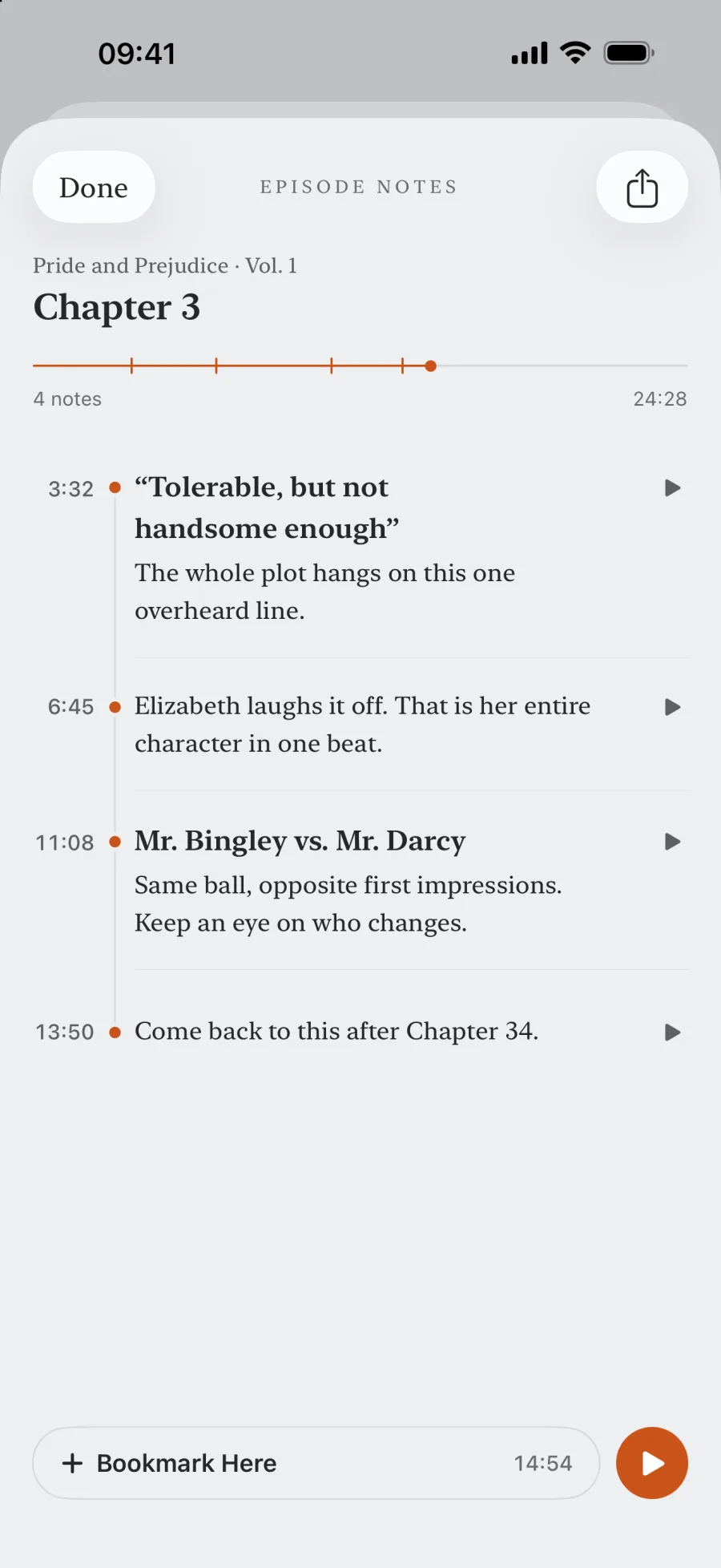
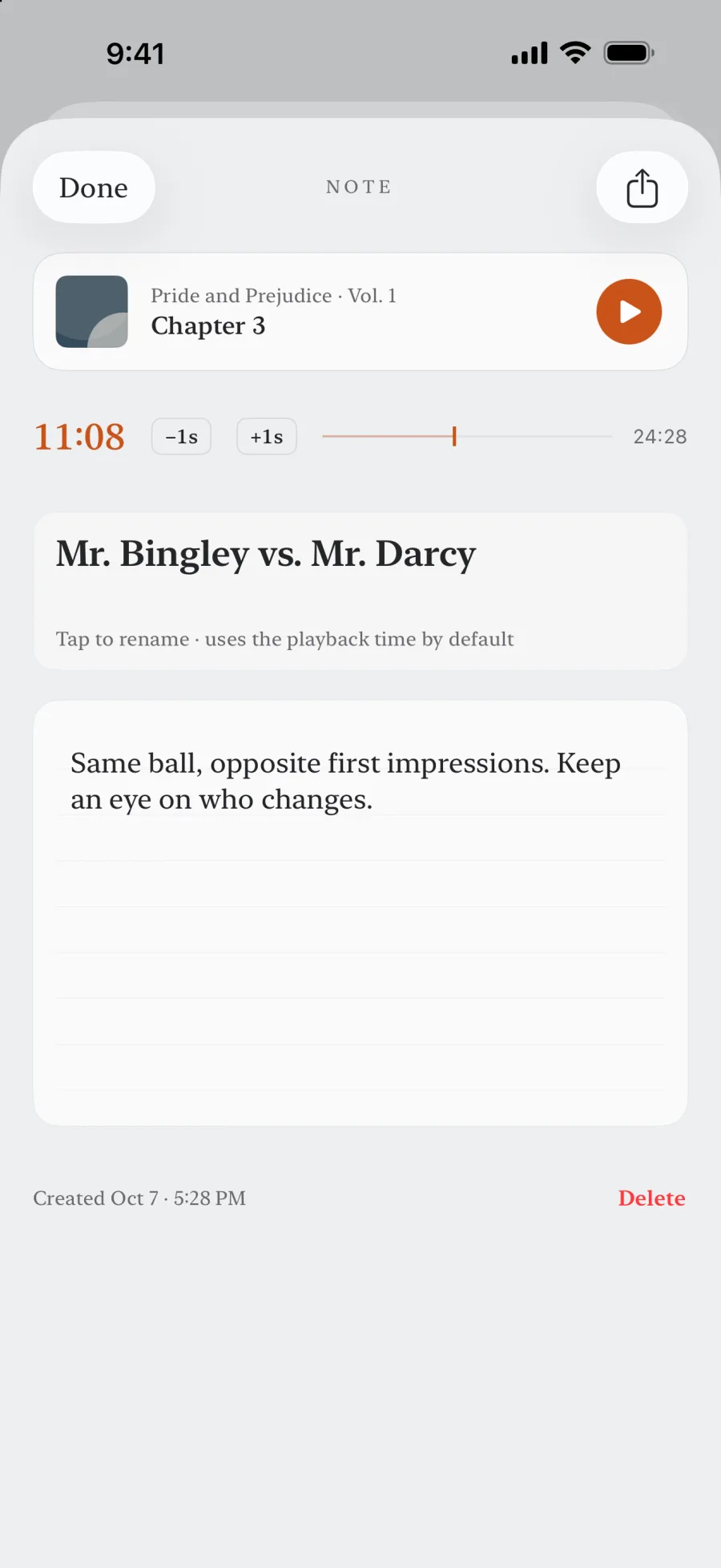
Open the lecture's notes. The marks sit on a timeline; tap ▶ to hear each one again and write one line: what it is and why it matters. Nudge a mark by a second if it is off. The free version lets you write text on 5 marks; EarMemo Pro removes the limit.
Before the exam: go back to the source
My Notes collects the notes from every lecture, and its search finds words in your notes and in lecture titles. Tap a note and the lecture plays from that second. Hearing the explanation again in the lecturer's own words beats re-reading a line you wrote at 2×.
Getting the notes out
With EarMemo Pro, export one note, one lecture's notes, or a whole course merged into one Markdown file, ready for Obsidian, Notion or a study doc. Each note carries its timecode as text. A sample export and the Obsidian steps are on timestamped notes exported as Markdown.
Which tool for which job
| If you have… | Reach for | The trade |
|---|---|---|
| Downloaded lecture files, and want your own notes tied to the second | EarMemo | You write the notes; nothing is transcribed. |
| A live class you are recording while you write | Notability | Built around recording in class, not around a library of downloaded files. |
| A need for the full lecture as searchable text | A transcription app | You get text rather than a player for marking moments. |
| Slides or a board you need to see | The video itself | EarMemo plays the sound only. |
When EarMemo is the wrong choice
- You need to see the slides or the board. EarMemo plays the sound of a video, not the picture.
- You want a transcript or an AI summary. EarMemo has neither, by design.
- The lectures only stream from your school's site. EarMemo plays files on the phone; it cannot open a stream. If there is no download button, it can't help.
- You want notes in sync between iPhone and iPad. EarMemo runs on both, but each device keeps its own notes; there is no cloud sync.
Questions people actually ask
How do I take notes on a recorded lecture on iPhone?
Open the recording in a player that ties notes to the playback position. In EarMemo, tap Bookmark Here (or press your headphones) at each explanation you'll need, keep listening, then write one line on each mark afterwards. Tapping a mark later replays the lecture from that second.
Can I listen to a lecture video as audio only on iPhone?
Yes. EarMemo plays the sound of MP4, MOV and M4V files, in the background with the screen off, and remembers where you stopped in each one.
Can I speed up lecture recordings without the chipmunk voice?
Yes. EarMemo plays from 0.5× to 3.5× and keeps the pitch natural; 1.5× suits most lectures.
Can I search my lecture notes?
Yes. My Notes searches the text of your notes and the lecture titles. It does not search the audio itself, because nothing is transcribed.
Does EarMemo transcribe lectures?
No. There is no speech-to-text and no AI. You write the notes; the timestamp takes you back to the original explanation.
Can I export lecture notes to Obsidian or Notion?
Yes, with EarMemo Pro: notes export as plain Markdown, per note, per lecture, or one merged file per course. You save the file into your vault or import it yourself; there is no automatic sync.
Try it with your own files
EarMemo is free to download and free to keep using within its quota. EarMemo Pro is a single one-time purchase — no subscription, no ads, no account.