 EarMemo
 › Gresham College lectures offline
How to listen to Gresham College lectures offline on iPhone
On the lecture's page at gresham.ac.uk, open the Audio tab under the video and tap the player's Share icon. Touch and hold the download icon (Download episode) and choose Download Linked File. The MP3 lands in Files → Downloads. Import it into an offline player such as EarMemo and it plays without a connection, at any speed, resuming where you stopped.
Gresham College in London has given free public lectures since 1597, and its site says it holds more than 3,500 lecture videos. Most past lectures also have an audio version. Streaming one on a commute works until the signal drops; a downloaded file does not care.
Download the lecture audio
- Open the lecture on gresham.ac.uk (Watch Now, or search for the title). Each lecture page has tabs under the video: Details, Text, Audio, Downloads, Extra Reading.
- Tap the Audio tab. It shows a small podcast player.
- Tap the player's Share icon. Among the share buttons is a download icon, labelled Download episode. Tapping it on an iPhone only plays the lecture in a new tab, so touch and hold it and choose Download Linked File. On a computer, a plain click downloads the MP3.
- Find it in Files → Downloads. Safari saves downloads to Files → Downloads. That folder is in iCloud Drive unless you changed it under Settings → Safari → Downloads (Settings → Apps → Safari on iOS 18 and later); choose On My iPhone if you want files to stay off iCloud.
The Downloads tab has the transcript as a PDF (PDF Text), handy if you want to read along later. The same lectures are also published as the Gresham College Lectures podcast.
Import the files into EarMemo
- From Files. In EarMemo, tap ⋯ → Import Audio / Video, open Downloads, and select the files (tap Select to pick several). Choose Import Folder instead when you have a whole folder. A series of lectures you downloaded on a computer can go in as one folder, which becomes one album.
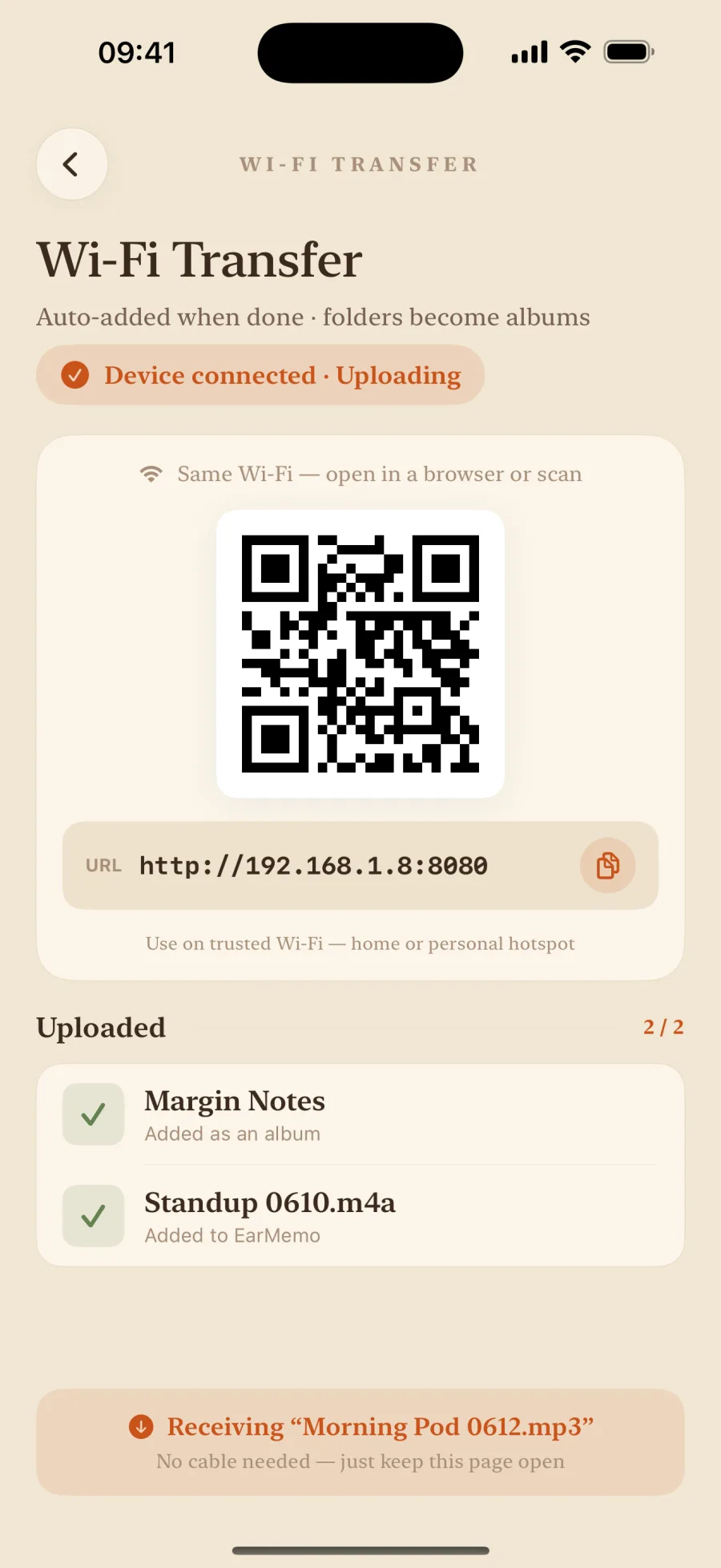
- Or from a computer over Wi-Fi. For a big batch, download on the computer, then in EarMemo tap ⋯ → Wi-Fi Transfer, open the address it shows in any desktop browser on the same network, and drag the folder onto the page. The transfer stays on your local network. All four transfer routes.
Listen: speed, resume, and marks from your headphones
- Speed from 0.5× to 3.5×, pitch kept, for an hour-long lecture.
- It remembers the exact second in every file, so you can leave one file, play another, and come back to where you stopped.
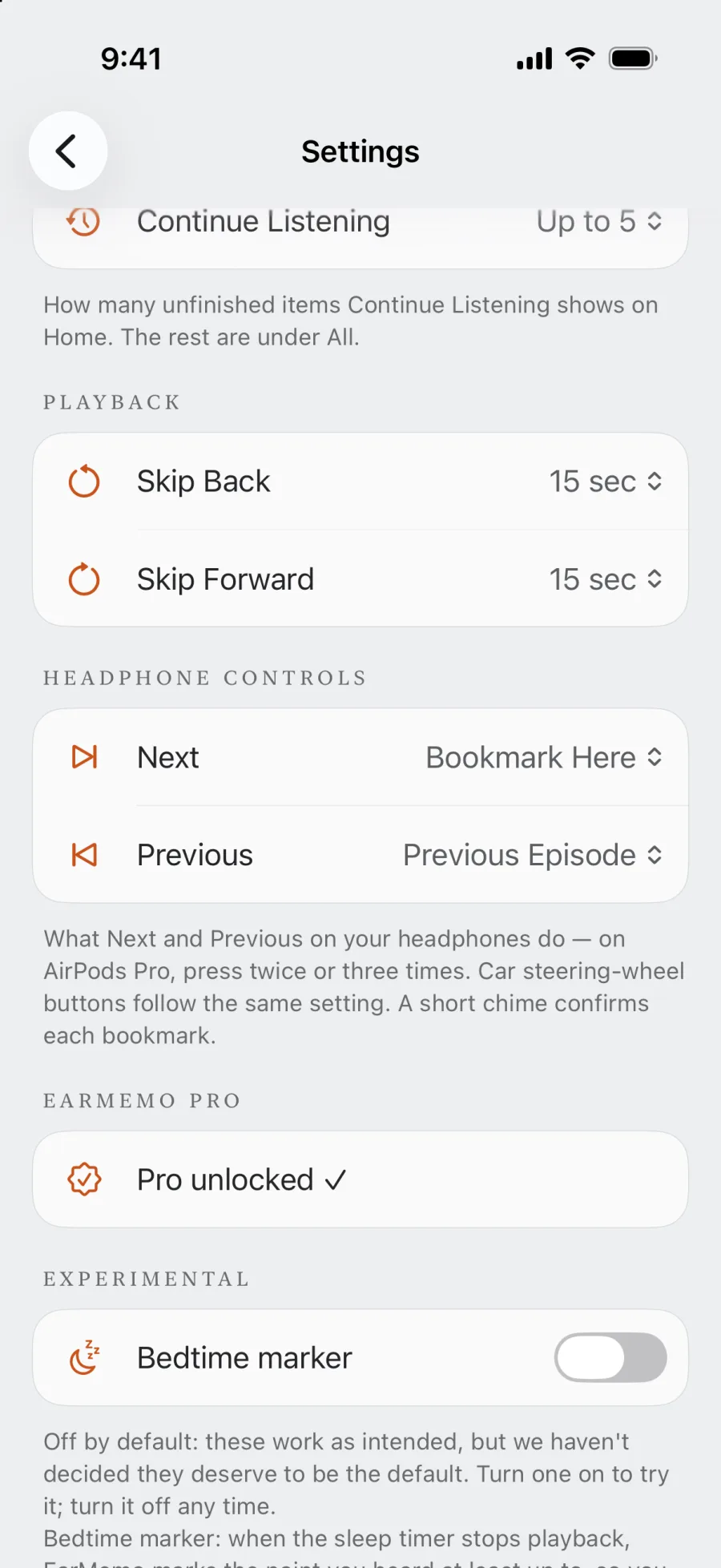
- Mark a moment without touching the phone. In Settings → Headphone Controls, set Next to Bookmark Here. On AirPods Pro, press twice; a short chime confirms the mark. Add a sentence later, and tap the mark to hear that passage again.
- A sleep timer with a countdown on the Lock Screen, for listening in bed.
Using the files
Gresham's terms encourage use of its lecture audio for educational purposes and rule out commercial use. Listening on your own phone is exactly what the download button is for; re-publishing the files is not.
Official pages used for this guide
When EarMemo is the wrong choice
- You only ever stream. If you have signal and just want the newest lectures, the Gresham College Lectures podcast in any podcast app is simpler.
- You want the video. EarMemo plays the audio track of video files, but it is a listening app; slides and demonstrations need the video.
- You want new lectures to arrive by themselves. EarMemo has no feed subscriptions; it plays files you put on the phone.
Questions people actually ask
Can I download Gresham College lectures?
Yes. On a lecture page, open the Audio tab and tap the player's Share icon. On iPhone, touch and hold the download icon (Download episode) and choose Download Linked File; on a computer, click it. The transcript is a PDF under the Downloads tab.
Where does the downloaded lecture go on my iPhone?
Into the Files app, in the Downloads folder that Safari uses — iCloud Drive by default, or On My iPhone if you changed Safari's download location.
Can I play the lecture faster than 2×?
In EarMemo, yes: speed goes from 0.5× to 3.5× with the pitch kept.
Do I need an internet connection to listen?
Only to download. Once the file is imported, EarMemo plays it, keeps your place and saves your marks on the device without a connection.
Is EarMemo free for this?
Free to download, and the free allowance never expires: you can listen to one album at a time, try 10 different audio tracks in total, add unlimited timestamp markers, and write text on 5 of them. Importing, resume, speed and the sleep timer are free. A long series needs EarMemo Pro, a single one-time purchase with no subscription.
Try it with your own files
EarMemo is free to download and free to keep using within its quota. EarMemo Pro is a single one-time purchase — no subscription, no ads, no account.