 EarMemo
 › LearnOutLoud free audio offline
How to listen to LearnOutLoud's free audio offline on iPhone
LearnOutLoud's free directory points to audio hosted elsewhere — university lectures, public-domain audiobooks, talks. Filter for Audio Download, follow the title to its source, and save the MP3 there (touch and hold the link → Download Linked File). Then import it into an offline player like EarMemo.
LearnOutLoud's Free Audio & Video directory says it lists more than 10,000 free educational titles (its listings have counted about 12,000). It is a catalog, not a host: each entry describes the title and sends you to wherever the file lives.
Find a title you can actually download
- Open the Free Audio & Video directory on learnoutloud.com and browse or search by subject.
- Filter by format. The directory separates Audio Download from Online Audio and Online Video. Only Audio Download titles give you a file; the others stream on their own sites.
- Follow the title to its source and use that site's download link. If tapping it just plays the audio, touch and hold the link and choose Download Linked File.
- Find it in Files → Downloads. Safari saves downloads to Files → Downloads. That folder is in iCloud Drive unless you changed it under Settings → Safari → Downloads (Settings → Apps → Safari on iOS 18 and later); choose On My iPhone if you want files to stay off iCloud.
Many sources have their own guide here, because each hands out files differently: LibriVox, Open Yale Courses, Gresham College, old-time radio and Dharma Seed.
Import the files into EarMemo
- From Files. In EarMemo, tap ⋯ → Import Audio / Video, open Downloads, and select the files (tap Select to pick several). Choose Import Folder instead when you have a whole folder. A lecture series saved into one folder becomes one album.
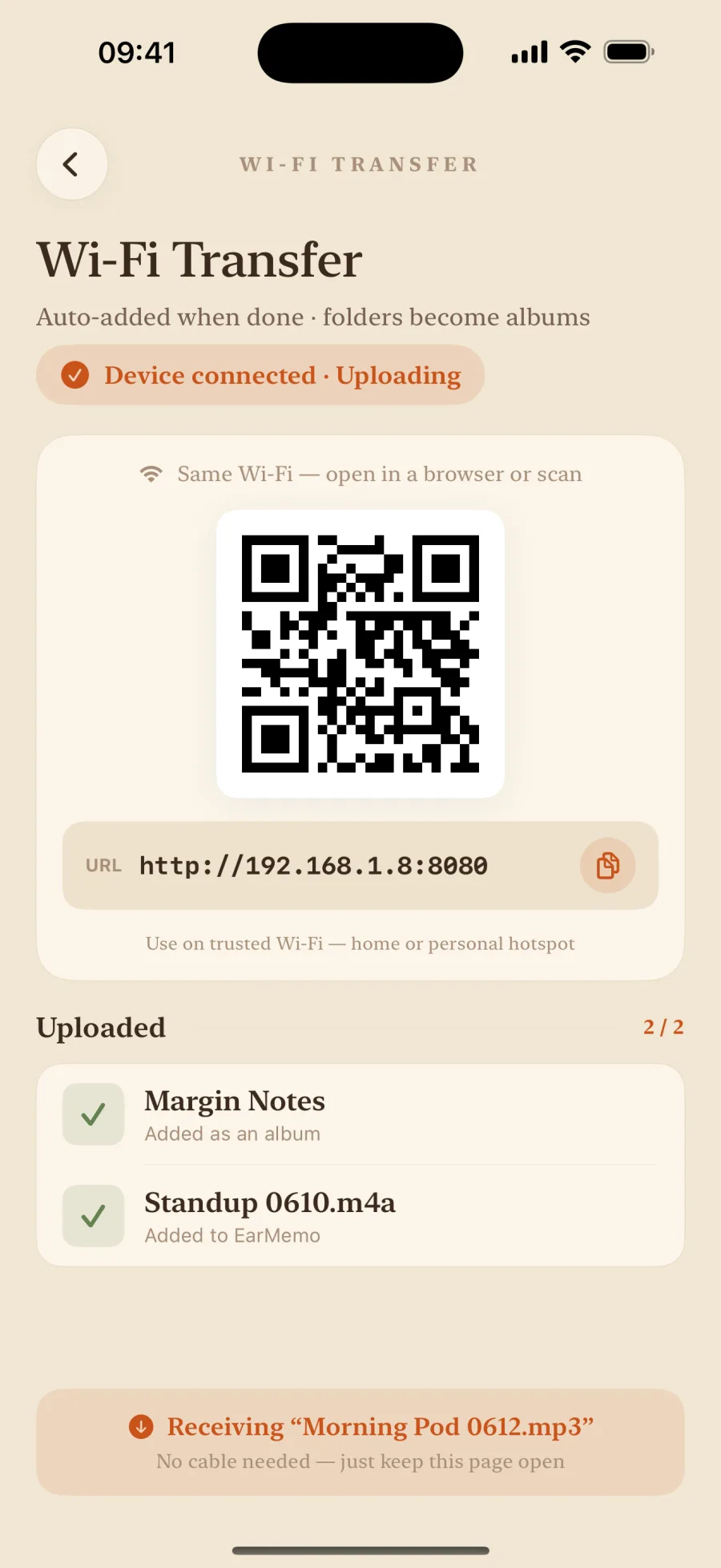
- Or from a computer over Wi-Fi. For a big batch, download on the computer, then in EarMemo tap ⋯ → Wi-Fi Transfer, open the address it shows in any desktop browser on the same network, and drag the folder onto the page. The transfer stays on your local network. All four transfer routes.
Listen: speed, resume, and marks from your headphones
- Speed from 0.5× to 3.5×, pitch kept, for lectures and audiobooks alike.
- It remembers the exact second in every file, so you can leave one file, play another, and come back to where you stopped.
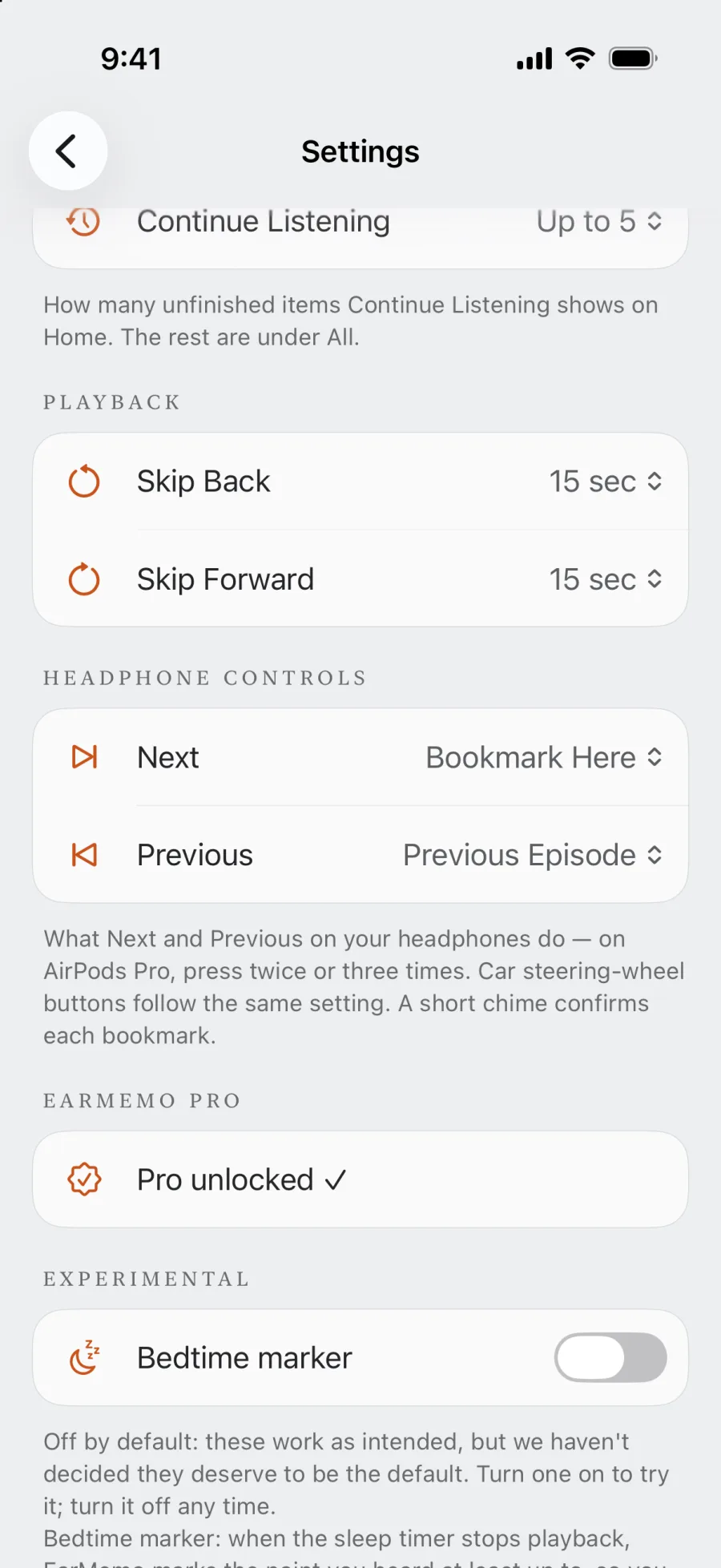
- Mark a moment without touching the phone. In Settings → Headphone Controls, set Next to Bookmark Here. On AirPods Pro, press twice; a short chime confirms the mark. Add a sentence later, and tap the mark to hear that passage again.
- A sleep timer with a countdown on the Lock Screen, for listening in bed.
When EarMemo is the wrong choice
- The title is Online Audio or Online Video. It streams on its own site; there is no file to import.
- It is one of LearnOutLoud's paid audiobooks. This guide covers the free directory. A paid download plays in EarMemo only if it comes as a DRM-free file.
- You want to browse and play in one app. EarMemo has no catalog; it plays files you download.
Questions people actually ask
Are LearnOutLoud's free titles really free?
The directory lists titles that their publishers give away — lectures, public-domain audiobooks, talks. The files are hosted by those publishers, not by LearnOutLoud.
Why can't I download some free titles?
Titles marked Online Audio or Online Video stream on the publisher's site and have no download. Filter for Audio Download.
How do I save the MP3 on iPhone?
On the source site, touch and hold the download link and choose Download Linked File. It goes to Files → Downloads, and EarMemo imports it from there.
Does it work offline afterwards?
Yes. Once imported, EarMemo plays the file without a connection and remembers your place.
Is EarMemo free for this?
Free to download, and the free allowance never expires: you can listen to one album at a time, try 10 different audio tracks in total, add unlimited timestamp markers, and write text on 5 of them. Importing, resume, speed and the sleep timer are free. A long series needs EarMemo Pro, a single one-time purchase with no subscription.
Try it with your own files
EarMemo is free to download and free to keep using within its quota. EarMemo Pro is a single one-time purchase — no subscription, no ads, no account.