 EarMemo
 › LibriVox audiobooks on iPhone
How to put LibriVox audiobooks on your iPhone
On the book's LibriVox page, touch and hold Download M4B and choose Download Linked File: one file for the whole book, with chapters. No M4B? Download the Whole book (zip file), tap the zip in Files to unpack it, and import the folder. Either way the book plays offline in a player like EarMemo, which remembers your place.
LibriVox volunteers record public-domain books, and every recording is free. The files themselves sit on the Internet Archive; the book page on librivox.org links to them in several forms.
Which download to pick
| Link on the book page | What you get | Best for |
|---|---|---|
| Download M4B | One audiobook file for the whole book (the size is shown, e.g. 368MB) | iPhone: one file, chapters included |
| Whole book (zip file) → Download | A zip of 64kbps MP3s, one per chapter | When there is no M4B |
| The chapter title in the list | One chapter as a 128kbps MP3 | Trying a reader's voice first |
| Play (next to each chapter) | The same chapter at 64kbps | Streaming in the browser |
The M4B route
- Open the book on librivox.org and scroll to Listen/Download.
- Touch and hold Download M4B and choose Download Linked File. A long book is several hundred MB, so use Wi-Fi.
- Find it in Files → Downloads, then import it (below). The M4B files we checked carry standard chapter markers, so EarMemo shows a table of contents and Previous/Next skip by chapter.
The zip route
- Tap Download under Whole book (zip file) and confirm.
- In Files → Downloads, tap the zip. Files unpacks it into a folder of chapter MP3s.
- Import the folder with ⋯ → Import Folder: it becomes one album with the chapters in order.
Safari saves downloads to Files → Downloads. That folder is in iCloud Drive unless you changed it under Settings → Safari → Downloads (Settings → Apps → Safari on iOS 18 and later); choose On My iPhone if you want files to stay off iCloud.
Import the files into EarMemo
- From Files. In EarMemo, tap ⋯ → Import Audio / Video, open Downloads, and select the files (tap Select to pick several). Choose Import Folder instead when you have a whole folder. For the zip route, pick the unpacked folder with Import Folder.
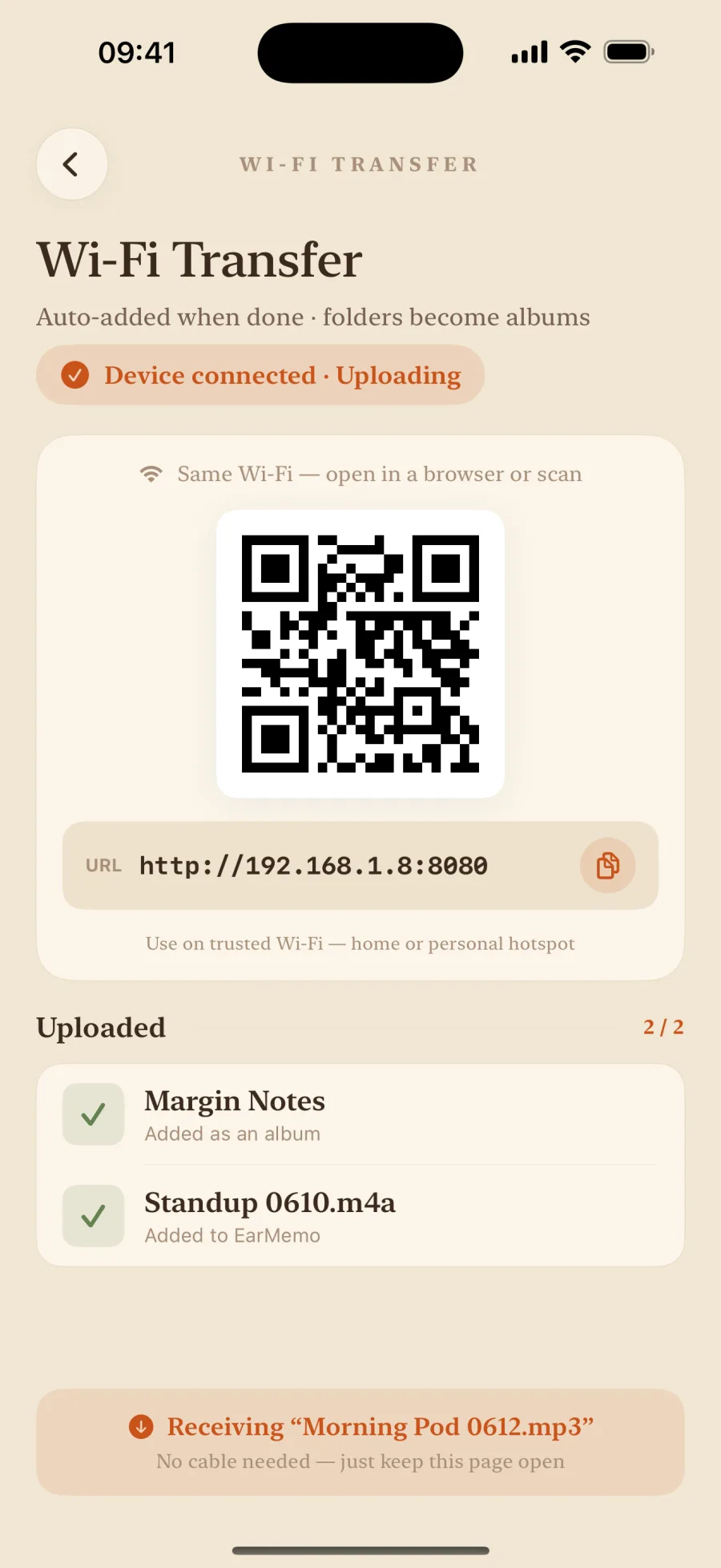
- Or from a computer over Wi-Fi. For a big batch, download on the computer, then in EarMemo tap ⋯ → Wi-Fi Transfer, open the address it shows in any desktop browser on the same network, and drag the folder onto the page. The transfer stays on your local network. All four transfer routes.
Listen: speed, resume, and marks from your headphones
- Speed from 0.5× to 3.5×, pitch kept, for readers who are slow or fast.
- It remembers the exact second in every file, so you can leave one file, play another, and come back to where you stopped.
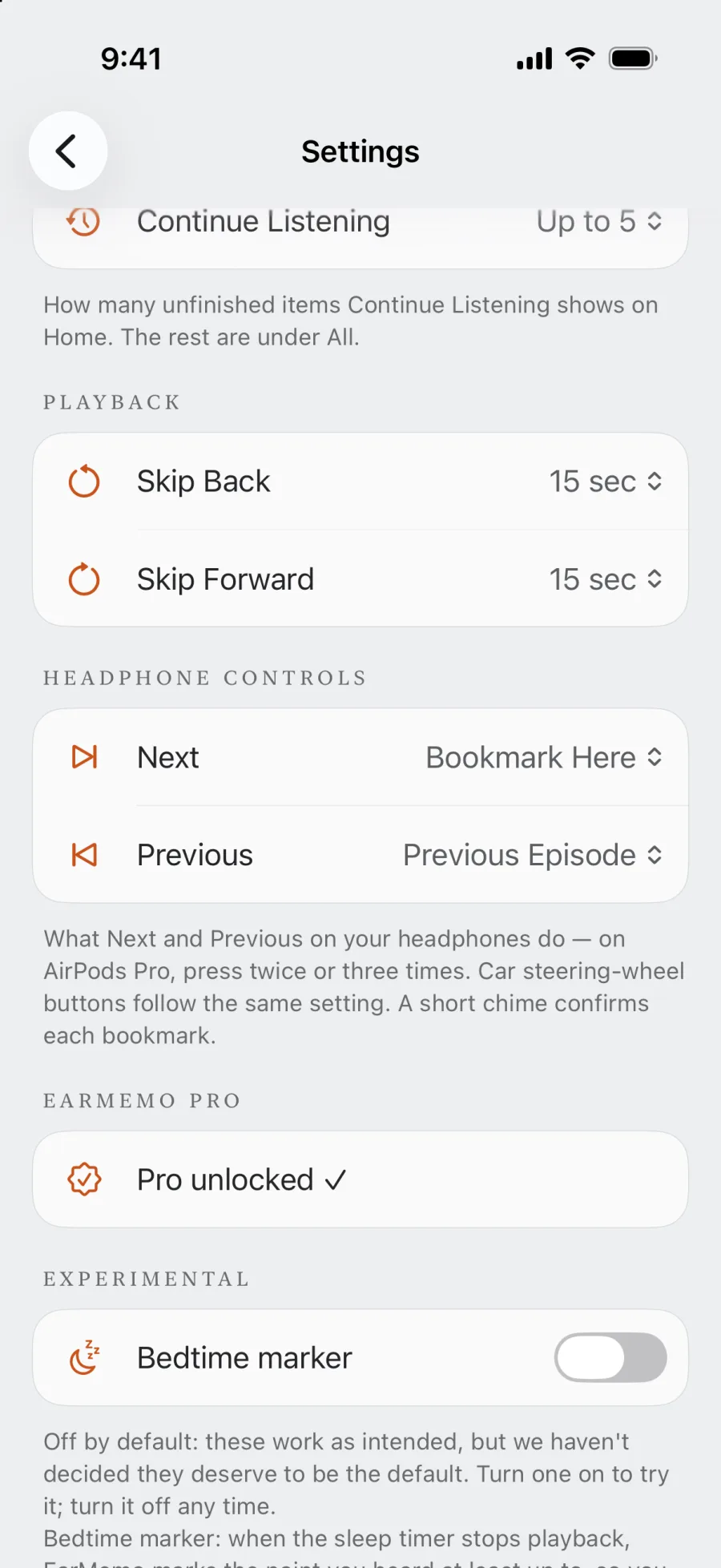
- Mark a moment without touching the phone. In Settings → Headphone Controls, set Next to Bookmark Here. On AirPods Pro, press twice; a short chime confirms the mark. Add a sentence later, and tap the mark to hear that passage again.
- A sleep timer with a countdown on the Lock Screen, for listening in bed.
Copyright
LibriVox says its recordings are public domain in the USA, and asks listeners elsewhere to check the book's status in their own country before downloading.
Official pages used for this guide
When EarMemo is the wrong choice
- You want to browse the catalog in the app. EarMemo has no LibriVox catalog; you download on the website and import. Dedicated LibriVox apps browse and stream.
- You want new chapters of an ongoing recording to arrive by themselves. The book's RSS feed in a podcast app does that; EarMemo does not subscribe to feeds.
Questions people actually ask
Should I download the MP3 zip or the M4B from LibriVox?
On an iPhone, the M4B: one file for the whole book, with chapter markers. Use the zip of MP3s when a book has no M4B, then unpack it in the Files app and import the folder.
How do I unzip a LibriVox download on iPhone?
Open the Files app, go to Downloads, and tap the zip. Files expands it into a folder of MP3s next to it.
Will the chapters show up?
The LibriVox M4B files we checked use standard chapter markers, which EarMemo reads as a table of contents. From the zip, each chapter is its own file, sorted in order inside one album.
Do LibriVox audiobooks work offline?
Yes, once downloaded. EarMemo plays them without a connection and remembers the exact second you reached.
Free version: is a 40-chapter zip a problem?
A book is one album, but the free version lets you try 10 different audio tracks in total, so a book split into many MP3s needs EarMemo Pro to finish. A single M4B counts as one track.
Try it with your own files
EarMemo is free to download and free to keep using within its quota. EarMemo Pro is a single one-time purchase — no subscription, no ads, no account.